Imagine hitting the render button and having hours of render time for a few seconds of video. Do you want to know why rendering takes so long? Let’s find out.
Longer rendering can make your projects ineffective and slow. Finding out the reason and fixing it up would be a lifesaver for you and the machine you are running.
Even in most cases, a weak CPU is the main reason for ever-running renders. Perhaps, we have found many surprising reasons that can make your render sluggish.
Let’s learn all of the reasons causing you longer rendering times and find out proven solutions.
Rendering videos can take a little bit longer for several reasons. But below are the causes, which might be the reason behind the lengthy duration of the process. Getting into these reasons and fixing them up would be a great solution for you. Let’s get in.
One of the most popular reasons for long rendering is the low computer specification. For example, you need at least a powerful CPU unit to start rendering 2D or 3D videos. Aside from the powerful processing unit, having a decent GPU or graphics processing unit would be the key.
If you have a lower RAM count on your computer device, it can also be a reason. Because when your computing device is running 3D software, it takes up most of the RAM resources. You should try to have at least 8GB of RAM on your PC.

When your rendering takes longer, it’s probably because the 3D scene has more elements. You must try to remove unnecessary elements from your 3D composition. Removing them and making the scene a bit cleaner would speed things up.
Another crucial reason might be that the objects in the rendering scene contain complexity. Either they contain dense textures or shapes. Like objects containing higher edges, vertices take a longer time to render. Simpler textures and shapes help avoid the system from taking any extra time.
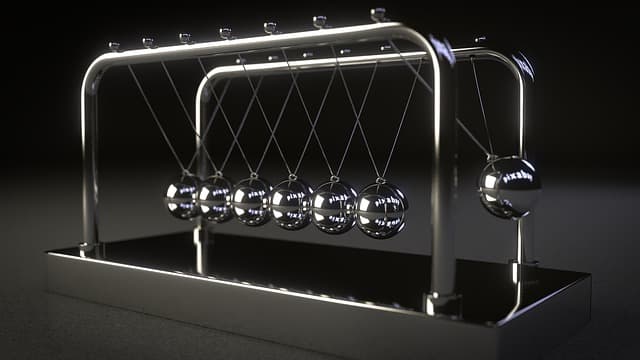
Whether you believe it or not, adding reflections to your rendering scene increases the total time. As light reflections bounce off the surfaces, computing resources take more. Plus, going for a photorealistic reflection would make the file a bit heavy.
Even though you use reflections, make sure to optimize them correctly. Or, in extreme cases, you might consider not adding reflections to your render. Many video compositions look great without light reflections, so check to render reflection settings before starting it out.
Rendering can take longer when your resolution is a bit higher. For example, the lowest standard resolution is 480p, 640 x 480 pixels. On the other hand, the highest standard resolution is 4K, 3840 x 2160 pixels.
Thus, you must get into adjusting the rendering resolution. If the 4K resolution is unnecessary, consider downsizing it to any lower standard resolution. Hence, it could be a big factor in increasing the overall time frame. You could check out the output resolution at your software render settings.
Photorealistic rendering takes a lot of time to render in all software and platforms, so if photorealism is not mandatory, go for a few subtle effects. Hence, you could achieve photorealism even with optimized and lower settings.
For example, in popular free 3D software, Blender offers you render engines like Evee, which provides faster rendering with lower settings. As a result, the output stays realistic, yet the render time shortens in large numbers. You could use the same technique for other paid options as well.

Are you using complex movements of human characters? You should review it, as it might be why your rendering is taking too long. Further, you must also check out the additional physics with the movement. This animation eats up a lot of resources to render and increases the time.
One thing you could do is to bake the animation before you hit the render button. It helps shorten the render time as all the movement of the character or object is baked. Further, consider reducing the complexity of the animation or eliminating it when possible.
We often get to see unnecessary parts of the video add up to the total duration of the rendering, so we must cut out the unnecessary parts of the video. It is beneficial for your projects as it reduces the time for rendering.
To cut out unnecessary parts of the video, examine the total timeframe of the video. Cut out the movement or scene, which might not be useful for the video. It helps to reduce the file size of the video as well. It saves you from longer rendering and provides lighter files at once.
In case you are still asking, why does 3D rendering take so long? These are the things you should follow to lower the render time. It would make your next projects faster and a lot smoother.
First, start simplifying the existing material of your video. You could also consider having a lightweight or simpler material that renders faster. Simpler objects and materials lead to better rendering time.
One of the effective steps to improve the rendering time is to simplify the geometric complexity of the elements. If you are working with 3D elements, try to keep the geometry of their surface simple and clear.
Adjusting the lighting setup can help you shorten the render, so consider updating the lighting. Check out which lighting setup takes less time, making your project shorter.
Set the priority to GPU(Graphics Processing Unit). If you don’t have a GPU unit, make sure you buy one for your computer. It’s a lot more efficient than going for CPU rendering.
Cranking up the computer resources improves the render time effectively. For example, you add a better GPU, CPU, and RAM unit to your computer. It’s an effective way to get faster rendering.
Many render experts have seen smaller tile sizes improve the render time. You could make the render tile size lower in the software render settings.
When working with animation and movement, bake them before starting the rendering. Pre-baking movement reduces the pressure on the CPU. Select all the movements and click on the bake animation option in the software.
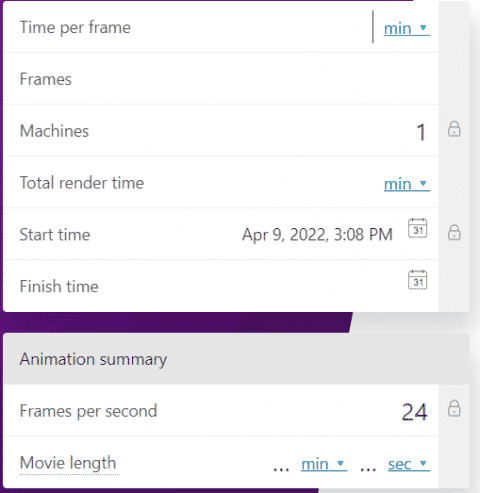
It’s certainly possible to calculate the total render time of your project. Below are the options you should consider when calculating the render time frame.
Use an online 3D rendering calculator to find possible times your project will need to be completed. Tools like the Omnie Calculator can help you get the exact hours and minutes your project might take.
You could use additional tools to get precise time calculations of your render.
Even though built-in software render estimations are not accurate, you get a decent idea about how long 3D rendering takes on your system.
Let’s go over some common questions regarding the high rendering time.
Softwares like Unity, Blender, and Maya are some of the best tools for rendering. You could use these for improved render time. This toolkit has better facilities to render different sorts of videos. For 2D projects, tools like the Toon Boom Animate and Stop Motion Studio. They are the best.
For most pro-level rendering tasks, 32GB RAM is the recommended number. Sure, you might feel comfortable with a lower RAM count, but it slows the render process, which is why, when you are going for a professional render, stick to mentioning RAM numbers.
Laptops such as the Razer Blade 14 and the Acer Predator Helios 300 are one of the best picks for rendering. These laptops provide you with the best settings for better output. You get quality output on the following laptop units.
We hope you got the answer to why rendering takes so long every time. It’s indeed a resourceful and hard task to go on. But with a little bit of adjustment, you could reduce it significantly. As a result, you can work on any render projects without any hassle.
Or you could go for a remote 3D rendering solution. Most of the time, you get a faster render. For example, we use high-end computers to render files on behalf of clients. Either way, make sure you do all the hard work to reduce the render time. It’s possible, and many have already gotten faster render. So, get off the mark right now.
1
2
3
April 7, 2026
6
April 3, 2026
7
April 3, 2026
8
10
April 3, 2026