Merging objects in Blender can be challenging at times. To make it easier for you, we are explaining the process of how to merge objects in Blender. Further, we are providing you with the detailed steps of each tutorial. With a better tutorial, you could join and subtract objects in Blender on the go.
In the following guideline, we will use the Union function, Modifier, and Add-on. Each of the processes doesn’t take more than 2 minutes. You could follow any procedures to get the same result. Once you learn the first step, others become self-explanatory.
Merging objects in Blender is a lot easier than many thought. Thus, in the following section, we will explain some of the easiest ways to merge objects in Blender. Further, we are using manual functions, Modifiers, and add-ons to merge different objects altogether.
First, let’s get into the manual function within Blender. It’s a fair and straightforward technique that would indicate merging objects in Blender with a few simple steps.
Step 1: Open your file in Blender.
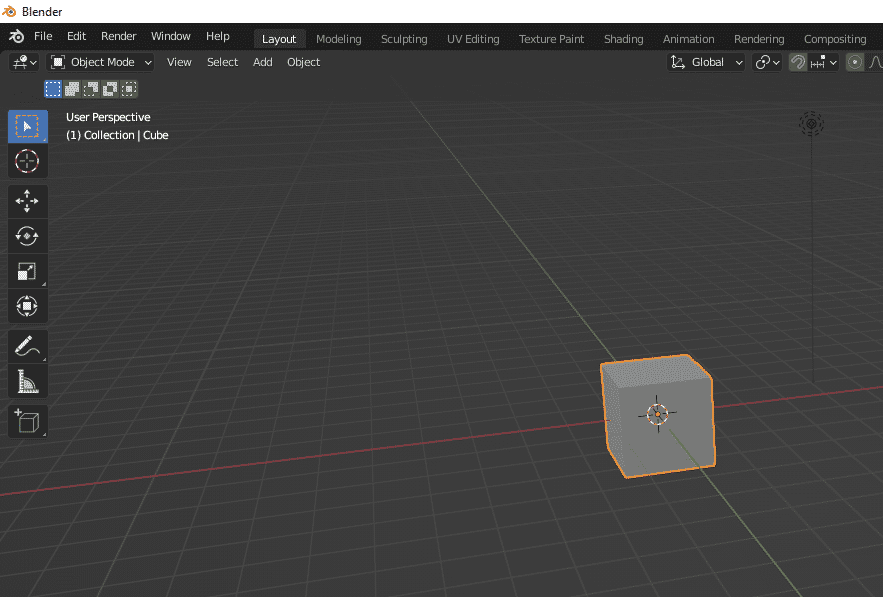
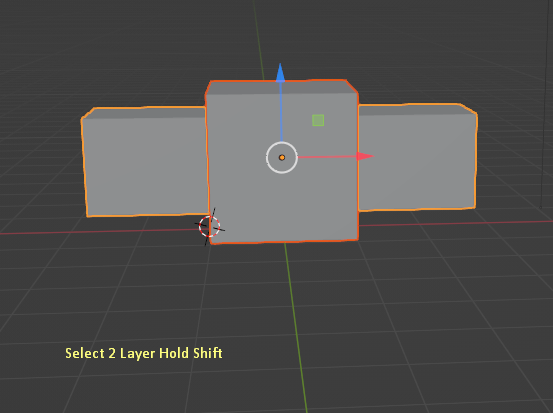
Step 2: Afterward, left-click on the object you don’t want to make the parent object in the Blender interface.
Step 3: Right now, left-click on the other object while pressing Shift. The following object would be the parent object to the first object.
Step 4: Check out the “Object” menu at the top part of the Blender manual. Afterward, click on the “Join” option in the appearing menu. On the other hand, you could use the Blender merge shortcut Ctrl + J to join these two objects into one.
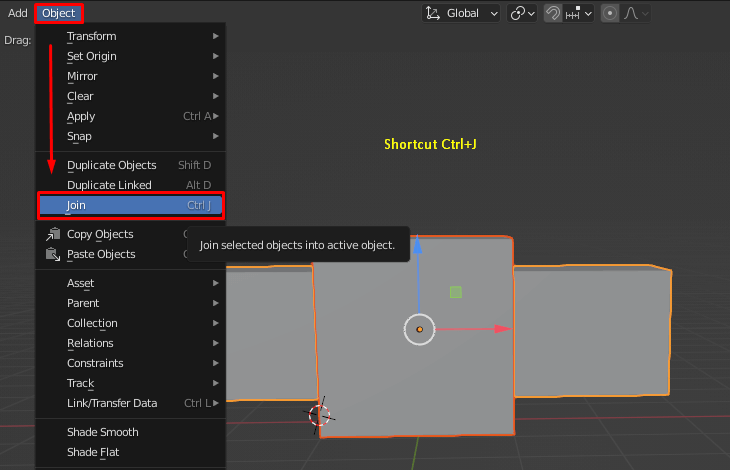
So, these are the steps to join Blender with manual commands. It’s important to note that the join function in Blender doesn’t join two objects. The join command only lets two objects work as one object.
If you need to merge complex objects within Blender, use the Modifier tutorial. The following tutorial would be one of the best to go to. Let’s get into it right now. It’s one of the best options as it provides you with a non-destructive procedure.
Step 1: Make sure you have both of your objects on the Blender interface.
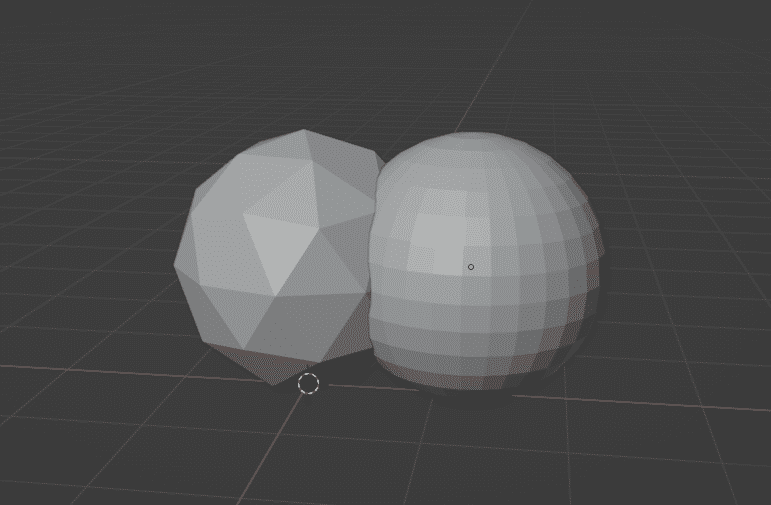
Step 2: First, select the first object you want to make the parent(main) object.
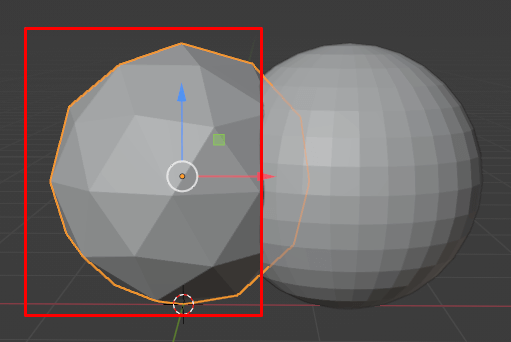
Step 3: Now, add boolean modifiers to this one. You need to keep the object selected while applying the Boolean Modifier.
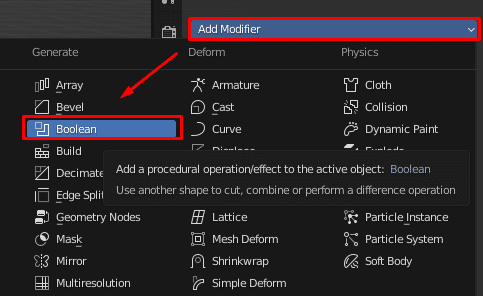
Step 4: After getting into the boolean modifiers, select the “Union” function.
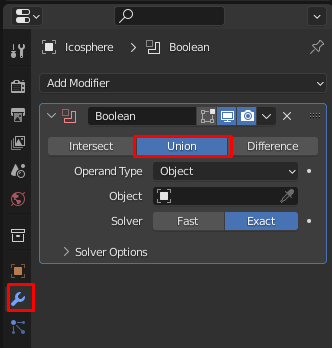
Note: In total, you would get three functionalities within the Boolean modifiers panel.
Step 5: Select the other object on the “Object” section of the Boolean modifiers panel. When you click on the empty box, it will show a list of objects within the Blender file. Select the object from the drop-down menu.
Step 6: Once you select the object, it will provide you with wired effects on both objects. Now apply the boolean modifiers to the object. Afterward, it would join both of the selected objects in one place.
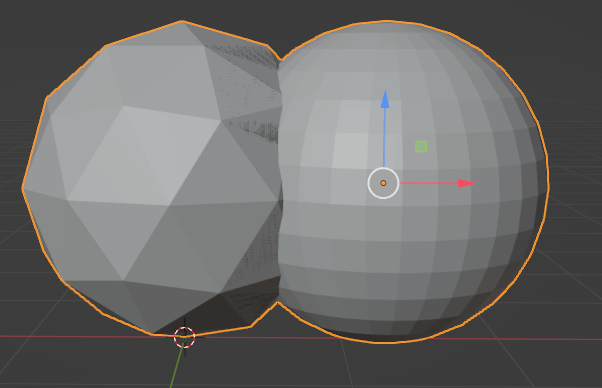
These are the steps to merge objects in Blender using modifiers. Even though modifiers are non-destructive in the process, once they are applied, the effect is permanent. That’s why we suggest you verify the effects before applying the modifiers to any set of objects.
You could use the add-on to merge different objects within the Blender interface as the last option. The add-on we are going to use is the Bool Tool. The following add-on comes with the initial Blender software pack. You need to go into the Preferences section and turn on the following add-on to activate it.
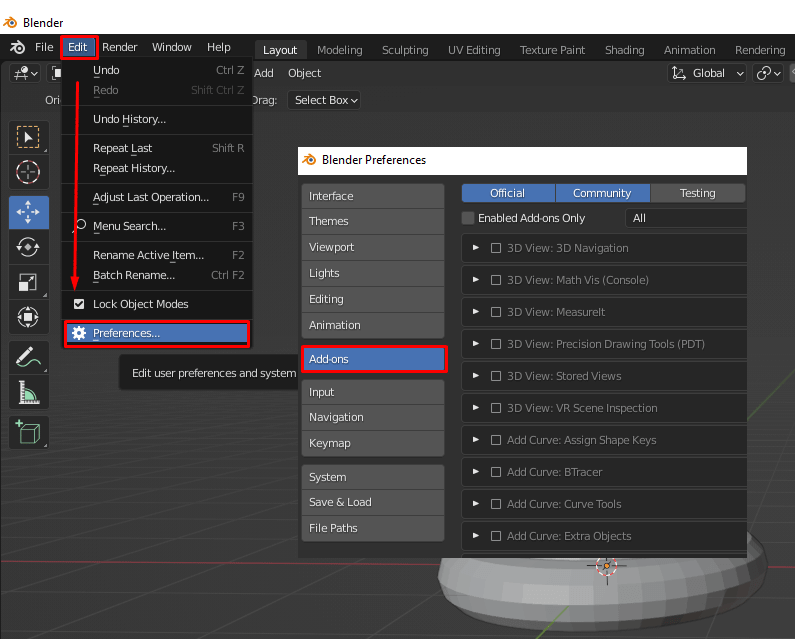
Step 1: Open your file in Blender and go into the Edit > Preferences> Add-ons in the menu. Then, click on the search box and type “Bool Tool”. From the search result, check the box beside “Bool Tool” to activate the add-on. Close the window.
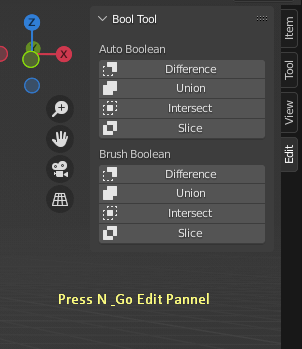
Step 2: Select an object you want to start the margin from. Once you select the object in Blender, Press “N” on the keyboard, and it will open up the side panel in Blender. You would get the Bool Tool interface and options within the side panel.
Step 3: You need to select the other object you want to merge in.
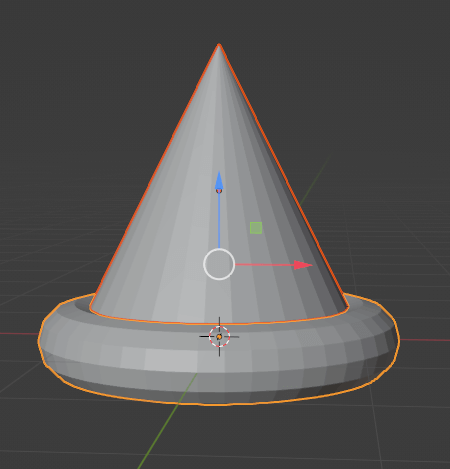
Step 4: After selecting two objects together, click on the “Union” button on the side panel.
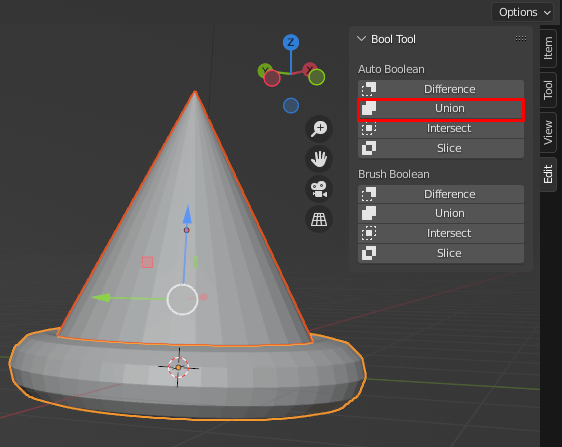
The following step would join two different objects into one. Unlike a normal Union function, the following step would delete any other extras automatically. Thus, all of it takes one simple click. Moreover, you could use “Brush Boolean” to turn the second object invisible. Finally, it would help you check how the Union function would affect the first object.
Related: How To Merge Meshes In Blender
In cases when you need to subtract two different objects in Blender, the subtract option is the best way to go. So, in the process mentioned below, we subtract two objects within Blender. But first, let’s get into the process of how to unjoin objects in Blender.
Step 1: First, make sure you select both of the objects and go into the Modifiers section.
Step 2: Afterward, apply the Boolean modifiers to both objects.
Step 3: Right now, find out the “Operation” section within the Modifiers interface. Afterward, select “Difference” from the appearance option.
Step 4: You need to click on the empty box in the “Object” section.
Step 5: Right now, select the object you want to cut the currently selected object with.
Step 6: Once you select the objects, apply the modifiers. To do so, click on the down arrow sign and click on the “Apply” option from the appearing drop-down menu.
The last step would subtract two merged shapes and provide the result. Plus, once you apply the Modifier, it will become a destructive step.
Related: How Long Does It Take To Learn Blender
As a strong reminder, you need to select one object as a parent when merging several objects. First, determine which of the objects is most important within a set of groups. Afterward, make sure you make the object a parent, and its position and other parameters would affect the rest of the object.
Further, sometimes two objects may get merged, but they can stay separate. Which is why it’s better to make sure your objects are merged properly. Again, the best way to check it out is to go into X-ray mode.
How Does Blender Merge Vertices?
Merging vertices in Blender takes a few simple steps. First, select the object to which you want to connect the vertices. Then go into edit mode by pressing “Tab” on the keyboard. Afterward, go into the vertex mode. Right now, press “M” on the keyboard. Then select any of the merging options. The most beneficial option is the “Merge at center.”
How Does Blender Merge Edges?
To merge edges within Blender, first select the vertices, edges, or face-based selection. Afterward, go into the Mesh » Merge different edges on the Blender. On the other hand, You could press M to merge different edges altogether. Thus, it’s the best option for anyone from beginners to professionals.
What If Blender Can't Join Objects?
Blender does not join objects from two different object types. For example, you may face problems when joining two different types of objects, such as mesh and faces. However, you have the option to convert the object by going into the Object » Convert option. When Blender joins objects with different materials, you might also get errors. So try to match the material of two objects before merging them out.
When you get to know how to merge objects in Blender, it will be great for anyone working on a 3D environment. Further, we have explained how to subtract the objects as well. If the object is not functioning, it’s a better option to make each of the object types the same category.
Merging objects can be tricky in Blender, but with time, it will become a lot more seamless. Moreover, you have to make sure you are in the correct mode while merging vertex edges of a particular object. Otherwise, it’s an easy-to-follow process to go on.
2
3
4
April 7, 2026
7
April 3, 2026
8
April 3, 2026
9