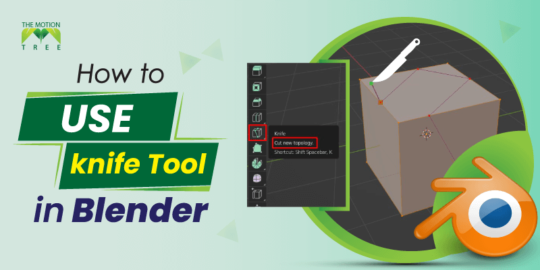
For a blender artist, the knife tool in Blender is a very useful feature that you can use to cut an object. However, using this tool can be a bit challenging for beginners. But once you know how it works, things get easy.
To use the knife tool, the first thing you have to do is activate the tool. To do that, Simply press k on the keyboard or click the knife tool from the tool panel. Once you have activated the tool, the cursor turns into a knife. That’s it, now you can use the tool to cut objects like plane mesh or mesh cubes.
This is just a basic response to your question. Later in this blog, I will describe more relevant aspects of the knife tool in Blender.
To activate the knife tool, you have two different ways. Either from the left side tool panel or by pressing K on the keyboard. One important note is that you access the knife tool only when you are in edit mode.
Method 1: Go to the Edit mode. Once you enter edit mode, the left side tool panel will automatically pop out to the right. If the tool panel remains hidden, press T on the keyboard. Now, click on the knife tool from the tool panel to activate it.
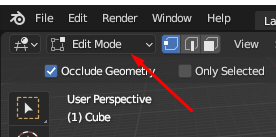
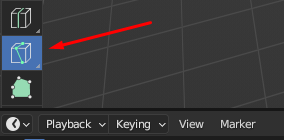
Method 2: This is a very straightforward way to access the knife tool. Enter edit mode and press K on the keyboard.
Once you activate the knife tool, the cursor turns into a knife. Now you can cut on any kind of object. Currently, I am using Blender 3.0, which works slightly differently, but once you know how it works, handling another version will not be an issue.
In the discussion below, we will use a knife tool to cut two different objects, such as a cube and a plane. Let’s start using a knife tool on the plane's surface first.
Step 1: Once you open Blender 3.0, it will be in default object mode with a cube mesh on the screen. Since we will work on the plane mesh, for the time being, hide the cube mesh by pressing the H key on the keyboard.
Step 2: After hiding the cube mesh, press Shift+A and select the plane mesh. As you can see in the picture below.
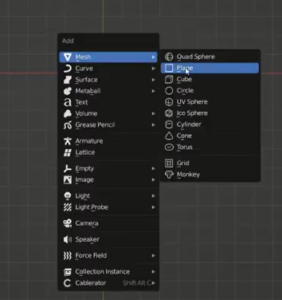
Step 3: Once a plane mesh appears on the screen, enter edit mode and activate the knife tool, which I have described earlier.
Step 4: To start cutting into your plane mesh, you can either left-click, drag, or tap left-click. You might have noticed at this point that your cursor still has a color line attached to it. Double-click the left mouse button or press the E key to exit the knife tool drawing mode.
However, make sure not to click right. It will remove the cuts you have just made. Finally, to verify that the cuts on the plane mesh have been made, press the spacebar or enter.
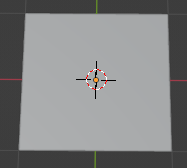
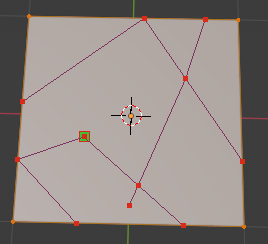
Before and after cutting the mash plane
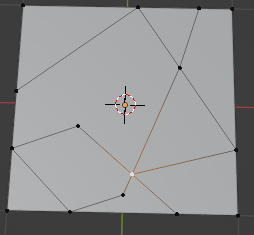
After clicking on the spacebar or Enter, the cut is fully applied.
Earlier, what you learned was just basic. Let’s use advanced functions and create an angle cut on the mesh plane. Here is a step-by-step guide.
Step 1: Activate the knife tool as you did earlier. Now, put the cursor on the plane and click. You will notice a small blue rectangle will appear on the cursor.
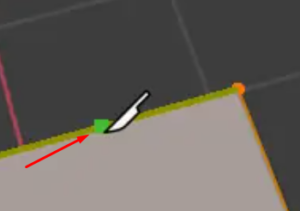
Step 2: Once you have a blue rectangle on the cursor, simply press A on the keyboard; therefore, the white straight line will appear. We will use this straight line to make an angle cut.
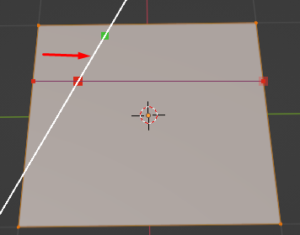
Step 3: Now, you have to change the angle setting. To do that, press the knife tool from the left ( see the picture below) and then press N on the keyboard. A new window will appear on the right. Drag the cursor to the angle snipping increment option and set the angle.
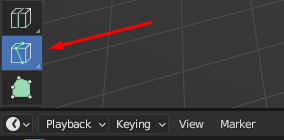
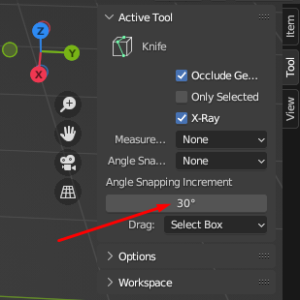
Step 4: Once you have the angle set. Press A and start drawing. Once the cutting is done, press the spacebar. This is how you can make an angle cut on the mesh plane in Blender.
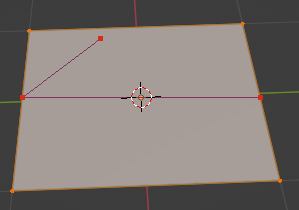
Cutting on the mesh cube using a knife tool requires you to follow the same procedure as cutting on the mesh plane. You just have to go to the edit mode, activate the knife tool, and start cutting.
However, such a basic cut does not go through the mesh. So if you want to cut through the mesh, activate the knife by pressing K and then pressing C. Once you have pressed C, hold the shift and then cut through. Once you finish, click and enter the spacebar. The cut will go through the mesh.
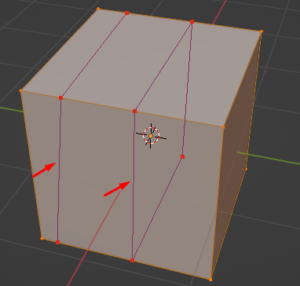
As you can see, the cut on the left side of the mesh is not going through, unlike the cut on the right
Hopefully, by this point, you are aware of several ways to use a knife tool in Blender. Here are some relevant and frequently asked questions you might want to know.
There are a few instances where you can use the knife tool. You can use the knife tool when you build a mesh or change the edge or number of vertices. On the other hand, you can use the knife tool to create irregular bevels or cracks.
Using shortcuts is always an efficient way that saves a lot of time. To activate the knife tool, press K or Shift+K on the keyboard. If you want to begin a new cut, press E. You can also constrain the cuts to 45 degrees by pressing C.
Since you unintentionally turned off the blender, I know two potential ways to restore the previous screen. The first method is to reopen the blender; go to the right corner of the bottom, and you will find the recovery last session option. The second method is to go to the file and drag the cursor to the ‘open recent’ option.
There you have it. Properly using a knife is an excellent skill. Hopefully, you have learned and can use it quite efficiently. Once you know how it works, you can solve many complex designs.
You can also create more geometry by using a knife tool. However, if you fail to use the tool properly, you may destroy the mesh and create shading artifacts, especially if you are a beginner.
For a beginner, it might be difficult to use the tool. However, things will become simpler as time passes. Therefore, be patient and keep working.
1
2
3
April 7, 2026
6
April 3, 2026
7
April 3, 2026
8
10
April 3, 2026